
You spot a photo on Instagram that you want to keep. Maybe it is a recipe your friend posted, a design idea for your next project, or a picture of your own that you never saved anywhere else. You tap and hold, you try to screenshot it, and the result looks flat and pixelated compared to the original. This is the exact moment most people start searching for a proper Instagram image download method, and often end up needing more than just a photo saver. They also want an Instagram video downloader, an Instagram reels download option, an Instagram story downloader, and sometimes even an Instagram DP downloader for a single profile picture.
This guide walks through how Instagram image download actually works behind the scenes, and covers every related content type you are likely to search for: photos, videos, reels, stories, highlights, and profile pictures. It also explains the details most tutorials skip entirely, like why your downloaded photo sometimes loses quality and how to tell a safe tool from a risky one.
Why Instagram Doesn’t Let You Download Content Directly
Instagram was built as a closed platform. Unlike Pinterest or Facebook, it never added a native download button for photos or videos, because the platform wants people to stay inside the app rather than saving content and leaving. The only built-in option is the “Save” bookmark icon, and that only stores a shortcut inside your own account. It does not save an actual image or video file to your phone or computer.
That gap is exactly why third-party Instagram image download tools, an Instagram video downloader, an Instagram reels downloader, and browser extensions all exist. They are not hacking Instagram. They are simply reading the public media link that your browser already loads when you view a post, story, reel, or profile, then giving you a direct way to save it.
How Instagram Image Download Actually Works
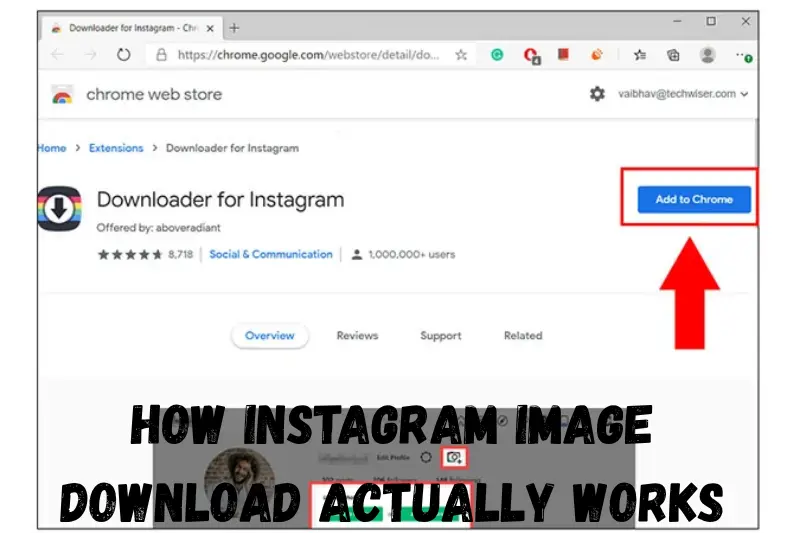
Here is the part most articles skip. When you open a public Instagram post, your browser silently downloads the full image or video file from Instagram’s content delivery network just to display it on your screen. A proper Instagram image download tool does the same thing your browser does: it reads the post’s public page, finds the direct media link inside the page code, and hands you that link so you can save the file yourself.
This matters for two reasons:
- No login is required for public posts. If a tool asks for your Instagram password to download a public photo, video, or reel, that is a red flag, not a requirement.
- Quality depends on which link the tool grabs. Instagram often serves several versions of the same photo or video at different resolutions. A well-built Instagram image download service pulls the largest version available, while a lazy one grabs a compressed thumbnail and calls it done. This is why two different downloaders can give you the same content in very different sharpness.
Knowing this helps you understand why results vary so much between an Instagram photo downloader, an Instagram video downloader, and a reels saver, something none of the guides ranking for this topic actually explain.
Instagram Photo Download: Saving Single Posts and Carousels
How to Download a Single Instagram Photo
- Open the post in the Instagram app or on instagram.com and make sure the account is public.
- Copy the post link by tapping the three dots on the post and selecting “Copy Link.”
- Paste the link into your chosen Instagram image download tool or Instagram photo downloader.
- Choose the highest resolution if the tool offers a size option, since a good Instagram picture downloader will list HD or original quality separately.
- Save the file to your device, cloud storage, or photo gallery.
The whole Instagram photo download process usually takes under ten seconds once you have the link copied.
Downloading a Carousel or Photo Album
Carousels, or multi-photo posts, trip up a lot of downloaders because each slide has its own image file hidden behind the same post link.
- Copy the carousel post link exactly as you would for a single photo.
- Paste it into a tool that specifically supports carousel or album Instagram image download, not just single photos.
- Look for a preview showing all slides. If the tool only shows the first image, it will only save the first one.
- Select “download all” if you want every slide, or pick individual images if you only need one or two.
Not every free Instagram photo downloader supports full carousel downloads, so check this before relying on one for album content.
Instagram Video Download and Reels Download
An Instagram video downloader works almost the same way as a photo tool, but it needs to correctly detect whether the post is a regular feed video, a Reel, or an IGTV upload, since Instagram stores each type slightly differently.
How to Download an Instagram Video
- Open the video post and copy the link the same way you would for a photo.
- Paste the link into an Instagram video downloader or a general Instagram downloader that supports both photo and video formats.
- Pick the resolution, since some tools offer both a standard and an HD instagram video download option.
- Save the MP4 file to your device.
How to Download Instagram Reels
An Instagram reels download works from the same post link as a video, but many general downloaders miss reels because the link format is slightly different from a normal video post.
- Copy the Reel link from the share menu, not the profile grid.
- Use a downloader that explicitly lists reels download or Instagram reels saver as a supported format.
- Download in the resolution Instagram originally uploaded it in, since Reels are often compressed harder than regular posts.
If your video downloader only ever grabs a blank thumbnail from a Reel link, it likely does not support Instagram reels download properly, and you should switch tools.
Instagram Story Download and Story Saver Tools
Stories disappear after 24 hours, which is why so many people specifically search for an Instagram story downloader instead of a general photo or video tool.
- Open the story while it is still live.
- Copy the username of the account, since individual stories do not have shareable links like posts.
- Paste the username into a story-focused Instagram story saver.
- Select the specific story photo or video from the list shown, since accounts often post several stories at once.
One thing worth knowing: once a story expires, most tools can no longer retrieve it. There is no legitimate way to recover an expired story unless you saved it while it was still active, and you should be skeptical of any Instagram story downloader that claims otherwise. Also be cautious of any tool advertising itself as an anonymous story viewer that also promises unlimited private story download, since that combination is almost always a data-harvesting trap rather than a real feature.
Instagram Highlights Download
Highlights are the permanent collections an account pins to its profile after individual stories expire, and they need their own approach.
- Go to the profile and open the specific Highlight cover you want.
- Copy the username or Highlight link, depending on what the tool asks for.
- Use a tool that lists Instagram highlights download or highlight saver as a feature, since not every story downloader also reads Highlights.
- Choose whether you want the whole Highlight reel or a single slide inside it.
An Instagram highlight downloader only works on public accounts, exactly like every other tool in this guide.
Instagram DP Download and Profile Picture Downloader
Profile picture Instagram image download, often searched as Instagram DP download, works a little differently because there is no post link to copy.
- Go to the profile you want.
- Copy the username or the profile URL instead of a post link.
- Paste it into a tool built for Instagram DP download or profile picture downloader use specifically.
- Instagram stores profile pictures at a fixed, smaller resolution, so do not expect the same sharpness as a regular post photo, even from a tool advertising “HD instagram dp download.” This is a platform limitation, not a flaw in the tool.
Browser Extensions vs Web-Based Tools vs Apps
There are three common ways to handle Instagram image download, video download, and story download, and each fits a different habit.
Web-based tools work in any browser, need no installation, and are the safest starting point for occasional use. You paste a link and get a file. The tradeoff is you repeat the copy-paste step for every photo, video, or reel.
Browser extensions add a download button directly onto Instagram’s website, which is faster if you save content often. The tradeoff is that extensions require broader permissions, so only install ones with a clear privacy policy and recent updates.
Mobile apps are convenient on phones but come with the most risk, since app stores host multiple copycat apps with the same name and different code behind them. Read recent reviews before installing, and never grant an app permission to access your Instagram login unless it clearly explains why.
Instagram Image Download and Content Quality: What Actually Changes
This is the section most competitor pages leave out entirely, and it is often the actual reason people feel disappointed after downloading a photo, video, or reel.
- Instagram compresses uploads. Even before you download anything, Instagram re-encodes every photo and video you upload to save server space. A downloaded copy can never be sharper than what Instagram already compressed it to.
- Screenshots and screen recordings lose more quality than direct downloads. A screenshot captures your screen’s resolution, not the image file. A proper Instagram image download or Instagram video downloader pulls the actual file, which is almost always sharper than a screen capture of the same content.
- EXIF data is stripped. Camera settings, location tags, and timestamps embedded in the original photo are removed by Instagram during upload. No download tool can restore data that Instagram already deleted.
- “HD” claims vary by tool. Since there is no official HD standard for downloads, one service’s HD file might be another’s standard file. If quality matters, download the same content from two tools and compare file sizes; the larger file is usually the sharper one.
How to Choose a Safe Instagram Image Download Tool
With hundreds of similarly named sites and apps available for photo, video, reels, story, and DP downloads, a few checks separate the trustworthy ones from the risky ones:
- No login requirement for public content. You should never need to enter your Instagram password to save a public photo, video, or story.
- Clear privacy policy. Legitimate tools state plainly that they do not store your search history or the content you download.
- No forced app installs. Be cautious of web tools that push you toward installing an unrelated app to “complete” the download.
- Reasonable ad load. Some ads are normal for free tools, but pop-ups that redirect you elsewhere are a sign to close the tab.
- HTTPS connection. Check that the site address starts with https before pasting any Instagram link into it.
- No claims of accessing private accounts. Any tool that advertises a private Instagram downloader or private story viewer as a working feature is either misrepresenting itself or asking you to hand over your own login credentials, which puts your account at risk.
Running through this checklist takes less than a minute and saves you from tools that exist mainly to serve ads or collect data rather than to help with Instagram image download.
Is Instagram Image Download Legal?
Downloading a public photo, video, or reel for personal use, like keeping a recipe or a design reference, sits in a legal gray area that most people never run into problems with. The content itself, however, still belongs to whoever posted it.
A simple rule to follow:
- Personal, non-commercial use (saving for yourself, screenshots for your own reference) is generally low risk.
- Reposting without credit can violate both Instagram’s terms of use and copyright law, since the original creator retains rights to their photo, video, or reel.
- Commercial use, such as putting a downloaded photo in an ad or a product listing, requires explicit permission from the content’s owner.
- Private accounts and private stories should never be targeted by any download tool. Ethical Instagram image download services only work with public content for exactly this reason, and you should avoid any tool that claims to bypass a private account, view a private story, or unlock a private profile downloader feature. These claims are almost always false and are usually designed to steal login credentials instead.
If you plan to use downloaded content publicly, message the original poster and ask. Most creators are happy to give credit-based permission, and it avoids any dispute later.
Common Instagram Image Download Problems and Fixes
| Problem | Likely Cause | Fix |
|---|---|---|
| Download button does nothing | Account is private | Only public posts, stories, reels, and profiles can be downloaded by third-party tools |
| Image or video looks blurry | Tool grabbed a thumbnail, not the full file | Try a different tool that specifically offers HD or original quality |
| Wrong photo downloads | Carousel post, tool only reads first slide | Use a tool with carousel support and select the exact slide |
| Reel download fails or shows blank | Tool does not support reels download format | Switch to a downloader that explicitly lists Instagram reels download as a feature |
| Story link not accepted | Story downloaders need a username, not a post link | Recopy the username from the profile, not the story itself |
| Link won’t paste or process | Copied the wrong link type | Recopy directly from the three-dot menu on the post, not the browser address bar |
| Download fails midway | Temporary server or connection issue | Wait a minute and retry, or try a different Instagram image download tool |
Organizing Photos, Videos, and Reels After You Download Them
A step nobody talks about: once you start doing regular Instagram image download alongside video and reels saving, files pile up fast in a generic “Downloads” folder. A simple habit fixes this:
- Create a dedicated folder per project, campaign, or content type (photos, videos, reels, stories, DP).
- Rename files right after downloading, since Instagram exports use random strings that mean nothing later.
- Back up anything used for work to cloud storage in case you need to prove when you saved it.
Frequently Asked Questions
Can I download my own Instagram photos and videos in bulk? Yes. Instagram’s own data export tool (Settings > Security > Download Your Information) lets account owners request every photo and video they have ever posted in one archive. This is the safest route if you are downloading your own content rather than someone else’s.
Why does my downloaded photo look worse than it did on Instagram? Instagram compresses every upload before you even see it. What you download is usually identical in quality to what the app displayed, so the difference you notice is often the screen size or zoom level, not the download itself.
Do I need to install anything to download Instagram photos, reels, or stories? No. Web-based tools handle Instagram image download, video download, reels download, and story download entirely in the browser. Extensions and apps offer more convenience but are optional.
Is it safe to download Instagram content to iPhone or Android? Yes, as long as you use a tool that does not request your Instagram login. The photo, video, or reel saves like any other file to your camera roll or downloads folder.
Can I download a video and photo from the same post? If a post contains both, most Instagram image download tools separate them into individual files so you can save only what you need.
Can I download someone’s Instagram highlights? Yes, as long as the account is public. A tool built for Instagram highlights download will let you select a specific Highlight and save either the full reel or individual slides.
How do I download just a profile picture? Use a tool made for Instagram DP download or profile picture downloader use. Paste the username instead of a post link, since profile pictures are not attached to individual posts.
Can I download videos or photos from a private Instagram account? No, not through any legitimate tool. Ethical downloaders only work on public accounts. Anything claiming to be a private Instagram downloader or private story viewer should be treated as unsafe.
Final Thoughts
Instagram image download does not have to be complicated or risky, whether you are saving a single photo, an entire carousel, a video, a Reel, a story, a Highlight, or just a profile picture. Once you understand that these tools are simply reading the same public media link your browser already loads, the process becomes far less mysterious. Stick to tools that skip the login requirement, check for carousel, reels, and story support before you need it, and always respect the line between personal use, private accounts, and reposting someone else’s work. With the steps and checklists above, you can handle Instagram image download, video download, reels download, story download, highlights download, and DP download with confidence, and you will actually understand why the results look the way they do.


