
You found a Reel you want to keep. Maybe it’s a recipe you’ll actually forget by tomorrow, a workout routine, or a clip so funny you need it saved for later. The problem is that Instagram does not give you a built-in “save to phone” button for most Reels, so an Instagram Reels video download tool becomes the easiest workaround.
This guide walks through exactly how to do an Instagram Reels video download on any device, what actually happens behind the scenes when you use one of these tools, and the mistakes that trip up most people the first time they try it. We tested the process across iPhone, Android, and desktop to make sure every step here actually works, not just in theory.
What Does “Instagram Reels Video Download” Actually Mean?
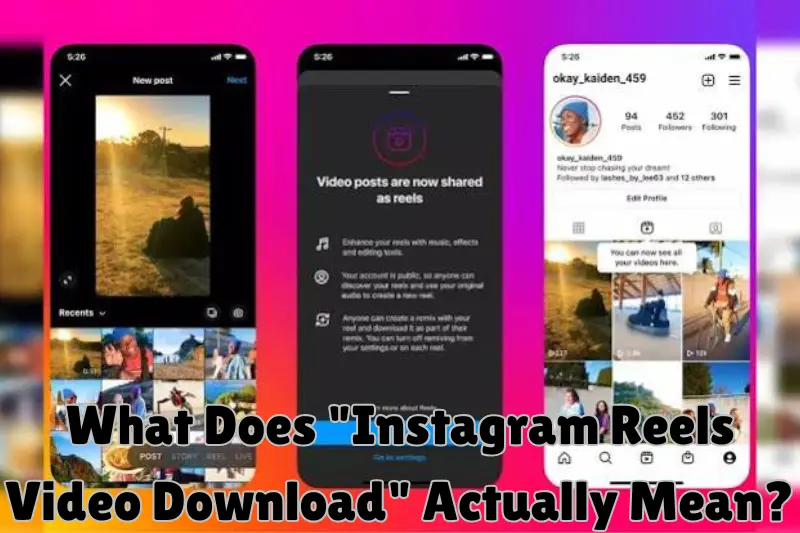
An Instagram Reels video download is simply the process of saving a Reel’s video file (usually an MP4) directly onto your device, instead of only being able to watch it inside the Instagram app. Once downloaded, the file lives in your camera roll or downloads folder, so you can watch it offline, repost it elsewhere, or use it for editing.
Instagram lets you bookmark Reels inside the app, but a bookmark only saves a link within Instagram itself. If you delete the app, lose internet access, or the original creator removes the post, that saved Reel disappears too. A real Instagram Reels video download saves the actual file to your storage, which is the key difference most guides skip over.
Before You Download: A Quick Word on Permission
This is the part most Instagram Reels video download tutorials rush past, and it matters. The video belongs to the person who made it, not to you, even if it’s public and easy to grab. A quick, honest breakdown:
- Downloading for personal, offline viewing (like saving a recipe for yourself) is generally low-risk and widely accepted.
- Reposting someone else’s Reel without credit or permission can violate Instagram’s terms and copyright law, even if you downloaded it “for free.”
- Using a Reel commercially (in an ad, a product page, a paid course) without a license from the creator is where people get into real legal trouble.
A good habit: if you plan to share a downloaded Reel anywhere, message the creator first and tag them when you post. It takes thirty seconds and it’s the difference between being a fan and being reported.
How to Do an Instagram Reels Video Download on Your Phone
Here’s the process that works whether you’re on iPhone or Android, using any of the standard reel-downloading websites.
- Open the Reel in the Instagram app. Tap the three dots (or the paper airplane/share icon) in the corner of the Reel.
- Select “Copy Link.” This grabs the direct URL of that specific Reel, not the whole profile.
- Open your downloader of choice in a browser (Safari, Chrome, or any mobile browser works fine).
- Paste the link into the input box and tap the download or search button.
- Choose your quality, if the tool offers a choice, and tap download.
- Find the video in your Photos app or Downloads folder. On iPhone, it usually lands in Photos automatically or through a “Save to Files” prompt. On Android, check your Downloads folder or notification tray.
The entire Instagram Reels video download process, start to finish, usually takes under thirty seconds once you know where the “Copy Link” button lives.
iPhone-Specific Tip
If a downloaded video shows up as a file rather than saving directly to Photos, tap the file, hit the share icon, and choose “Save Video.” iOS sometimes routes browser downloads to the Files app first rather than the camera roll.
Android-Specific Tip
Some Android browsers save Reels to a generic “Download” folder rather than your gallery. If you can’t find the video in your Gallery app, open your file manager, navigate to Downloads, and the video will be there in MP4 format.
How to Download Instagram Reels on Desktop
Doing an Instagram Reels video download from a computer works almost the same way, with one extra step since desktop Instagram doesn’t always show a visible “Copy Link” button.
- Open Instagram in your browser and find the Reel.
- Click the three dots and select “Copy link.” If you don’t see this option, click on the Reel to open it in its own view first.
- Paste the link into your chosen downloader website.
- Click download, then save the file to your computer when prompted.
Desktop downloads are often faster than mobile because you’re not competing with your phone’s background app refresh, and you get a clearer file browser to organize saved Reels into folders.
Reading Video Quality Correctly
Most Instagram Reels video download tools claim “HD,” but that word gets used loosely. Here’s what actually determines the quality you get:
- The original upload quality sets the ceiling. No downloader can pull a higher resolution than what the creator uploaded. If they posted at 720p, you’ll download at 720p, regardless of what a site promises.
- Compression happens twice. Instagram compresses videos on upload, and some downloader tools compress again during extraction. The best tools pull the file Instagram already compressed without adding a second round of quality loss.
- Watermark-free doesn’t always mean higher quality. A downloaded Reel without a watermark is just a cleaner file, not a technically better one. Don’t confuse the two when comparing tools.
If quality matters a lot to you (say, you’re re-editing the clip), test a download from a Reel you know was uploaded in Full HD, then check the file’s resolution properties afterward to confirm what you actually received.
Common Problems and How to Fix Them
Every Instagram Reels video download tool runs into the same handful of issues. Here’s how to solve them without giving up halfway through.
The link won’t paste or process. Double-check you copied the Reel’s direct link, not the profile link or a shortened link from another app like a bio-link tool. Reel URLs typically contain “/reel/” in the address.
“Private account” or “content unavailable” error. Instagram Reels video download tools can only access public content. If the account is private, the tool simply cannot reach the video, and no workaround changes that without violating the account owner’s privacy.
Download starts but the file won’t play. This usually means the download was interrupted. Delete the partial file and try the download again on a stable connection rather than switching between WiFi and mobile data mid-download.
The video downloads but has no sound. Rare, but it happens with Reels that use licensed music tracks, since some tools strip audio to avoid copyright triggers. If sound matters, try a different tool or check whether the original Reel actually had audio enabled.
Do You Need to Download an App?
You don’t need one, and honestly, for occasional Instagram Reels video download needs, a browser-based tool is the better choice. Here’s a quick comparison:
| Method | Setup time | Storage used | Best for |
|---|---|---|---|
| Browser-based downloader | None | None | Occasional downloads, quick saves |
| Dedicated app | 2 to 5 minutes | 20 to 100+ MB | Frequent downloaders, batch saving |
| Screen recording | None | None | Reels that block downloading entirely |
Screen recording deserves a mention because it’s the fallback nobody talks about. If a Reel truly won’t download through any tool, playing it and screen-recording your phone’s display always works, though you lose the original file quality and gain your phone’s UI elements unless you use a clean full-screen player.
Staying Safe While You Download
A quick reality check on safety, since this corner of the internet does attract sketchy sites:
- Never enter your Instagram username or password into a third-party downloader. A legitimate Instagram Reels video download tool only ever needs the public link, nothing else.
- Watch for excessive pop-ups or forced app installs. A trustworthy site lets you paste a link and download, without redirect chains or fake “update your browser” prompts.
- Avoid tools asking for payment for basic downloads. Saving a public Reel should not cost money. If a site paywalls the basic function, that’s a signal to look elsewhere.
- Check that the download is actually an MP4, not a disguised file type, before opening it.
Beyond Reels: Saving Other Instagram Content
Reels are only one piece of what people usually want to save from Instagram. If you’re building a habit of keeping content offline, it helps to know that the same copy-link-and-paste method works across the rest of the app too, just through a different downloader page for each content type.
Instagram Story Download
Stories disappear after 24 hours unless the poster saves them as a Highlight, which makes an instagram story download the most time-sensitive of all these tools. Open the Story, tap the three dots, copy the link, and paste it into a story-specific downloader the same way you would for a Reel. Keep in mind that a private instagram story download is not possible through any legitimate tool. If the account is private and you don’t follow them, that Story stays out of reach, and any site claiming otherwise is not being honest with you.
Instagram DP and Profile Picture Download
An instagram dp download pulls just the profile photo, usually at a much higher resolution than what displays on the app. Since Instagram shrinks profile pictures for the feed, a proper dp downloader fetches the full-size original instead of a cropped thumbnail. This is the quickest of all these tools since it needs only a username, not a full link.
Instagram Highlights Download
Highlights sit permanently on a profile, so an instagram highlights download works a little differently: you’re pulling an archive of Stories rather than a single clip. Most highlight downloaders ask for the highlight’s link or the profile username, then let you pick individual Stories inside that Highlight to save one at a time.
Instagram Photo and Post Download
For feed content, an instagram photo download saves a single image, while an instagram post download can include multi-image carousels, saving each photo in the set separately. Both work through the same copy-link method, and both preserve the original upload resolution rather than the compressed version you see while scrolling.
A Note on Profile Viewers
Some tools blur the line between downloading and viewing, offering an instagram profile viewer or anonymous highlight viewer that lets you browse public content without leaving a trace on the account owner’s follower list. These are a different feature from a downloader: a viewer just displays the content, while a downloader saves the file to your device. Worth knowing the difference before you pick a tool for the job.
Frequently Asked Questions
Is Instagram Reels video download free? Yes, the vast majority of tools and methods are completely free. Be cautious of any service that charges for basic downloads.
Can I download Reels without the Instagram app installed? Yes. As long as you have the Reel’s link, which you can get by viewing the Reel through a browser, you don’t need the app installed at all.
Will the creator know I downloaded their Reel? No. Instagram does not notify anyone when their public content is viewed or downloaded. It’s a silent action on your end.
Can I download Reels in bulk? Some dedicated apps support batch downloading, but most browser tools process one Reel at a time. If you’re saving dozens of Reels regularly, an app built for batch downloading will save you real time.
Why do some Reels fail to download while others work fine? Usually it comes down to account privacy settings, region restrictions the creator applied, or Instagram briefly changing its backend, which downloader tools then have to catch up with.
The Bottom Line
An Instagram Reels video download doesn’t need to be complicated. Copy the link, paste it into a trustworthy tool, and save the file, whether you’re on a phone or a computer. What actually separates a good experience from a frustrating one is understanding the quality limits, respecting the creator’s rights when you plan to reshare anything, and knowing the quick fixes for the handful of errors that come up. Keep this guide bookmarked, and you’ll never be stuck wondering why a download failed or where that saved file went.


